Jira: a CSV that keeps your hierarchy
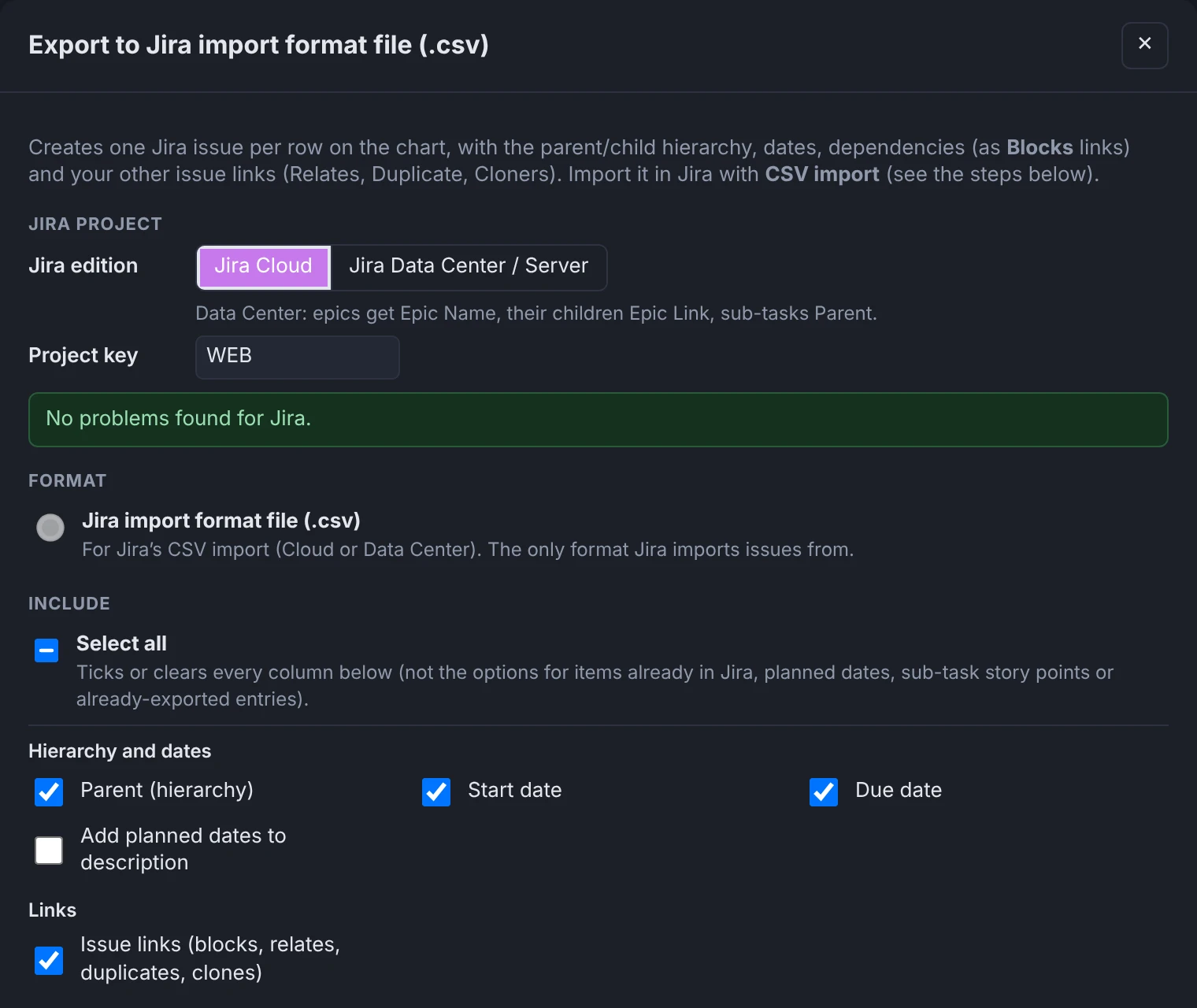
A CSV file for Jira’s own CSV import, on Cloud or Data Center. Issues keep their hierarchy, dates, story points and assignees. Dependencies become issue links, and comments and work logs can come along too.

Plans that allow for the tea break.
A free project planner with a drag-and-drop Gantt chart. It’s built for people who plan and cost projects: project managers, delivery leads, consultants and small agencies. Your estimates finally allow for meetings, lunch and leave. Keep going in Elevenses, or export to the tool you already have: Jira, Microsoft Project or Excel.
Private: no account, no tracking, no network requests, nothing uploaded.
Offline: no installer, no admin rights and no internet once it’s downloaded.
Transparent: one readable file, with every calculation explained. Right-click the app and choose View page source.
It’s free. The download is one HTML file (3.0 MB), and it’s happy on air-gapped and locked-down networks.
Version 0.1 · SHA-256: f4ee37d116d36cb0a2d23c179643a41d9a0aafa5b84865f61a7a3cb4216c2bc9
The download and the app you run at app/ are the same file, byte for byte.
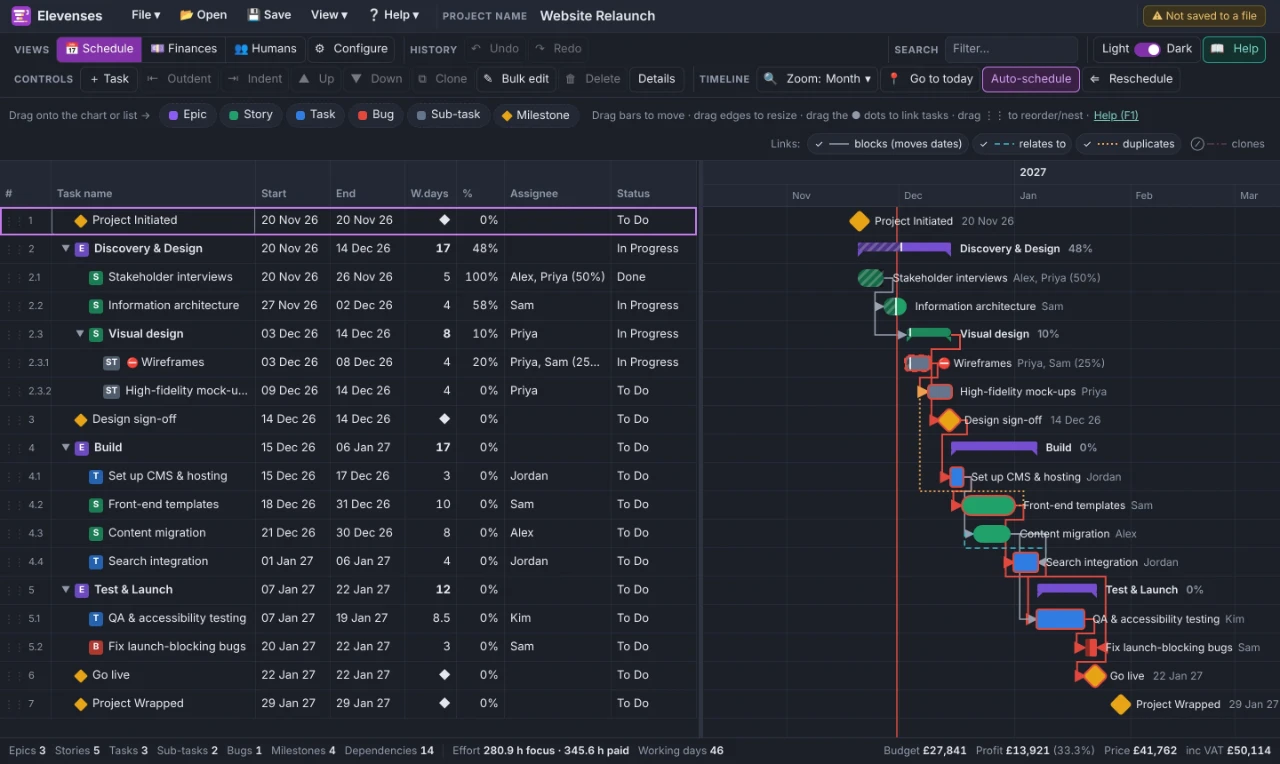
Estimates go wrong when they forget that people go to meetings, eat lunch and take holidays. Elevenses remembers, and shows its working.
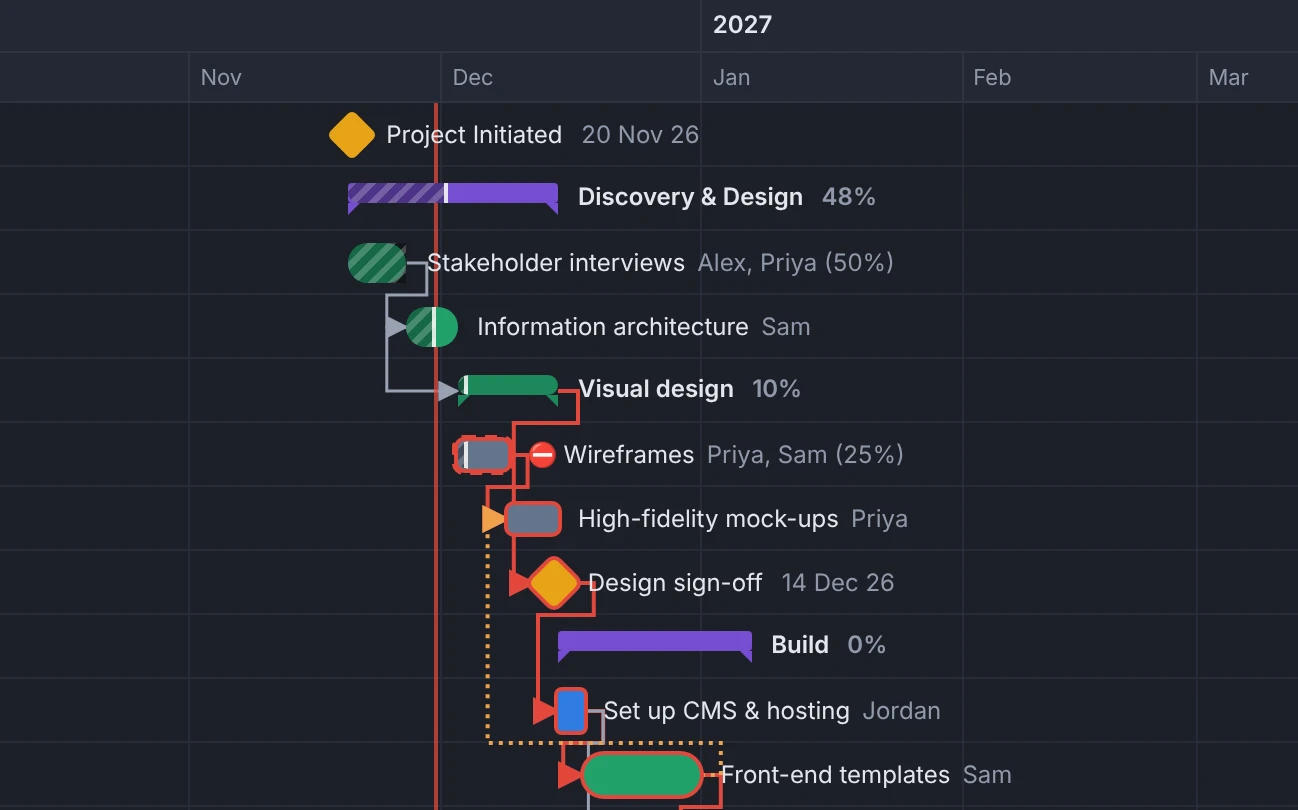
Drag bars on the Gantt chart to move or resize work, and drag from one bar’s dot to another to link them. Auto-scheduling shuffles everything that follows, and the critical path (the chain that sets your end date) is highlighted. Epics, stories, tasks, sub-tasks, bugs and milestones are all there.
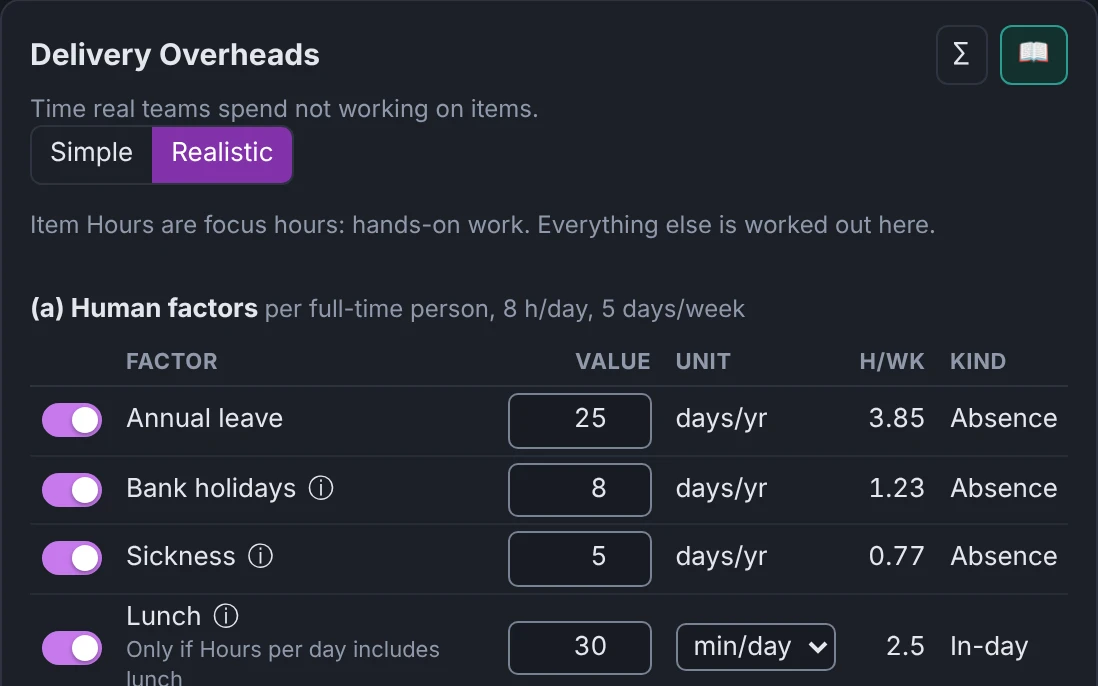
You put in the hands-on hours. Delivery Overheads adds the rest of the working week: meetings, lunch, leave, sickness and team rituals like stand-ups. Set each person’s focus (how much of their day is hands-on) and presence (how much of the year they’re around), and the dates and costs follow.
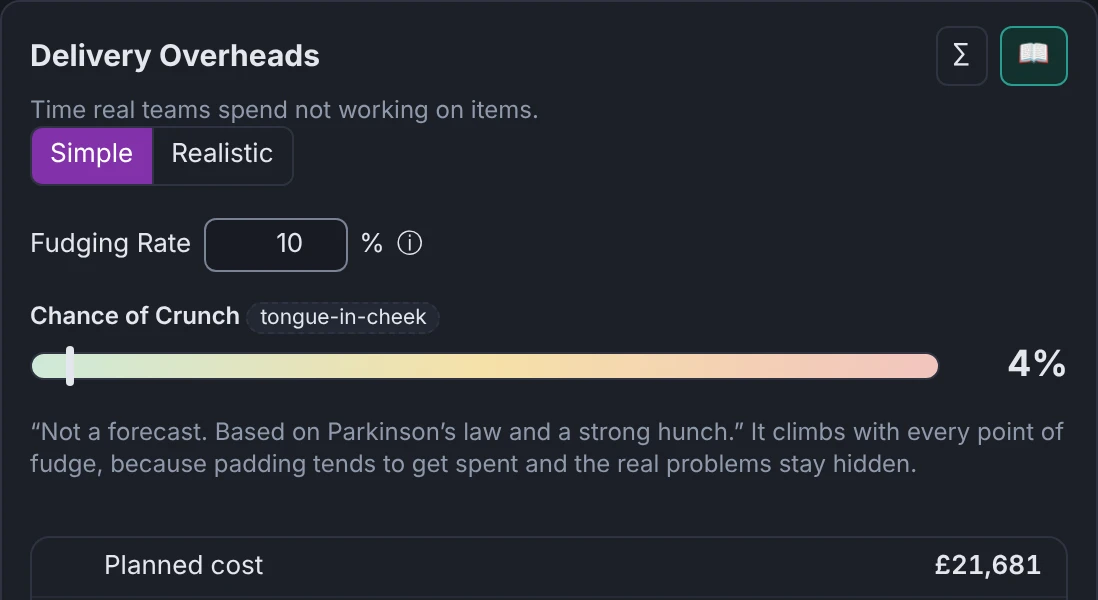
Not ready for that much honesty? We’ve all been there. Simple mode takes one number, the Fudging Rate, and a tongue-in-cheek Chance of Crunch climbs with every point of fudge. “Not a forecast. Based on Parkinson’s law and a strong hunch.”
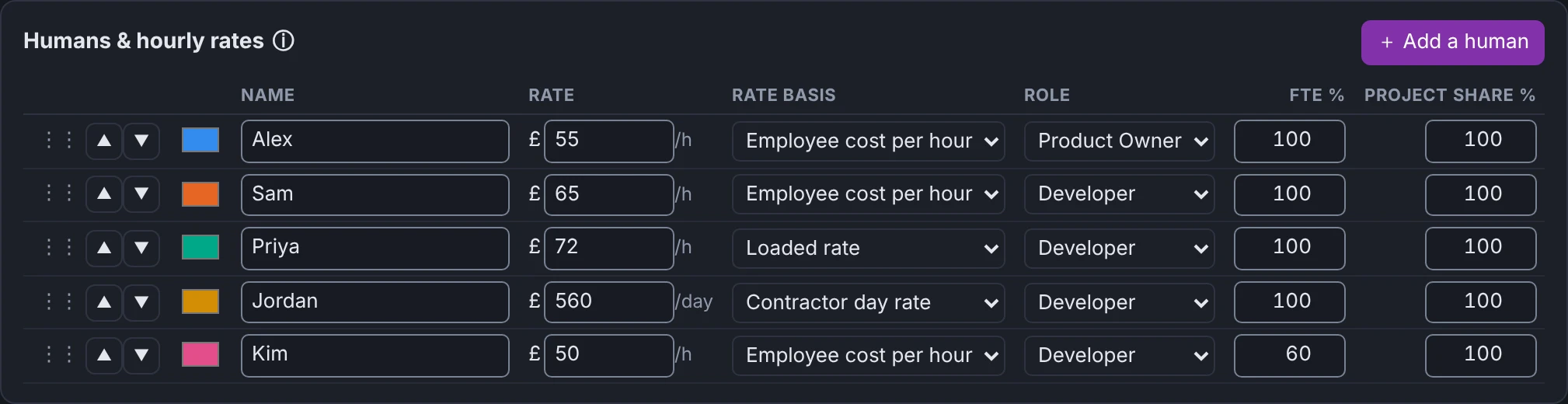
Your team lives under Humans: a rate for each person (hourly cost, loaded rate or contractor day rate), a role, working hours and a share of the project. Part-timers’ work can take longer, as it should. A materials catalogue covers the kit and supplies, priced by quantity and unit cost, and flows into your costs and the Excel workbook.
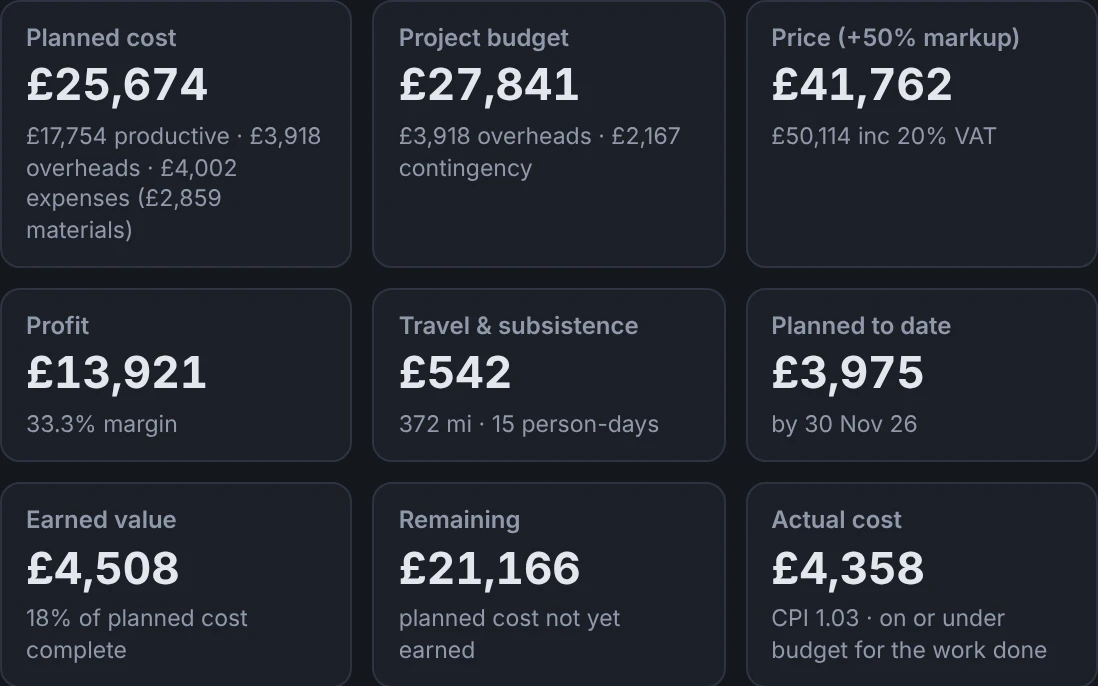
See planned cost, budget and price side by side, with contingency, risk and change budgets. Price from rate cards, as fixed price or time and materials, then print a quote for your client. Planning something internal? “Cost only” mode keeps prices out of it.
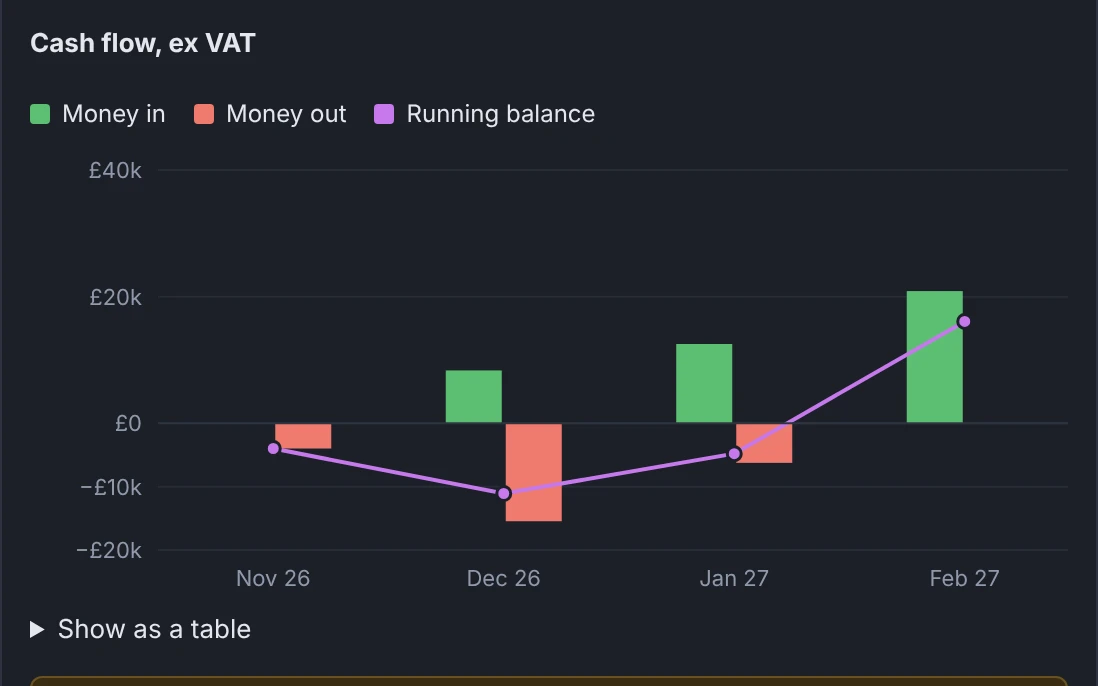
Turn milestones into invoice points and see when money goes out, when it comes in, and how much you’re funding in between. Handy before you agree payment terms.
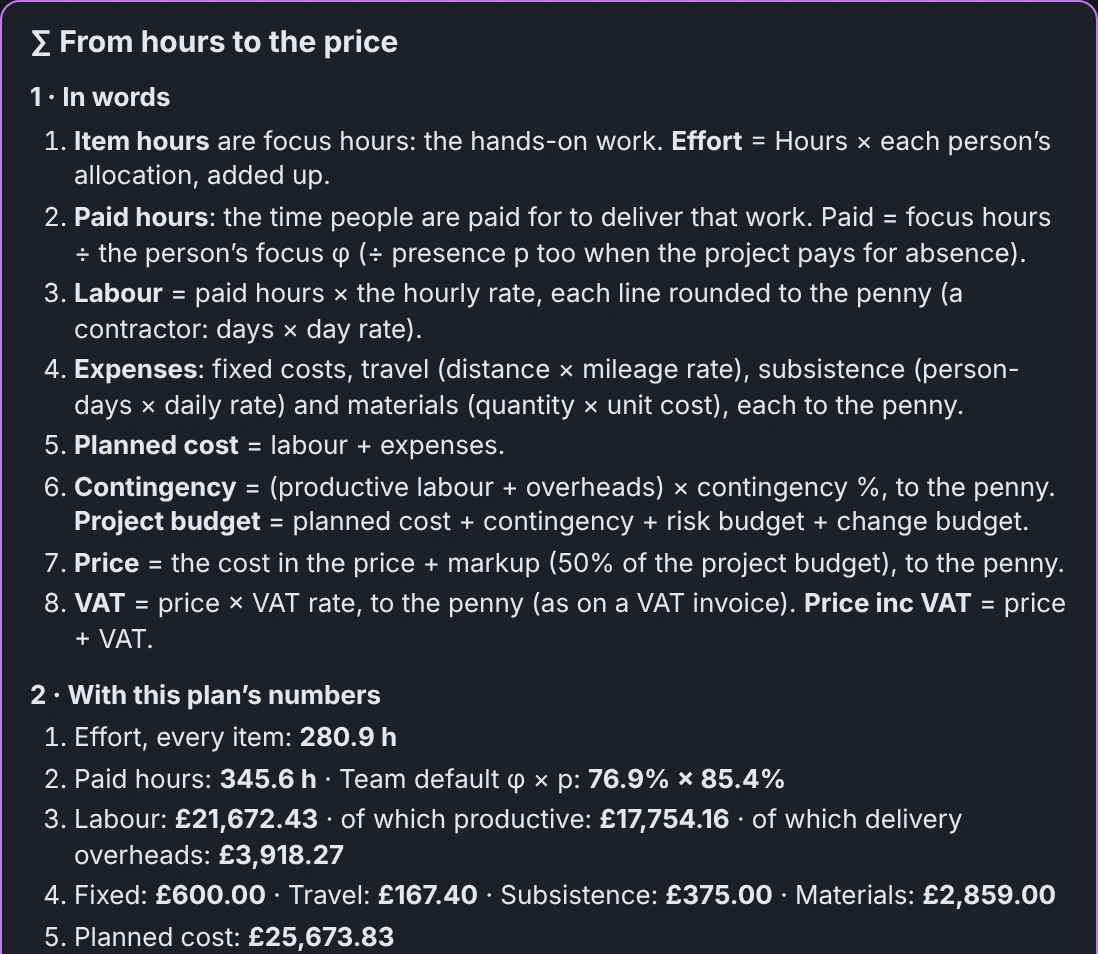
Wondering where a number came from? Open ∑ Formulae on a pane and it explains itself three ways: in plain words, with your plan’s own figures, and as the Excel formula behind it. Just the thing when a client, or your finance team, asks “how did you get to that?”
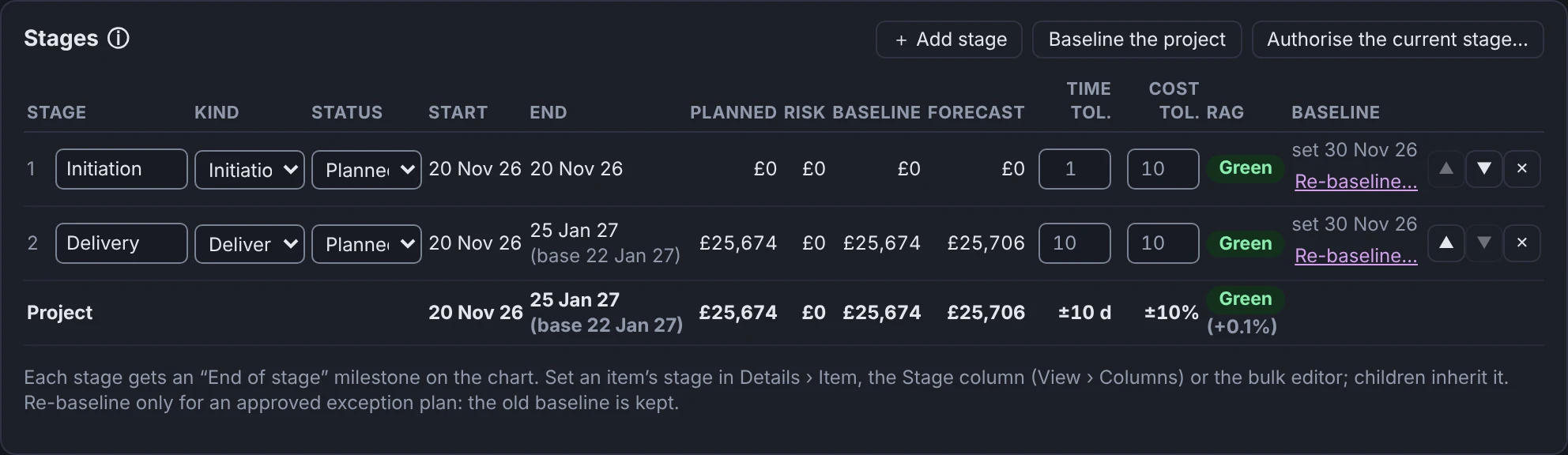
Pick the delivery style that suits you, and only the views you need appear. Pragmatic lets you switch features on one at a time. Governed adds stages, baselines and tolerances, risk and issue registers, a daily log, and highlight and end stage reports.
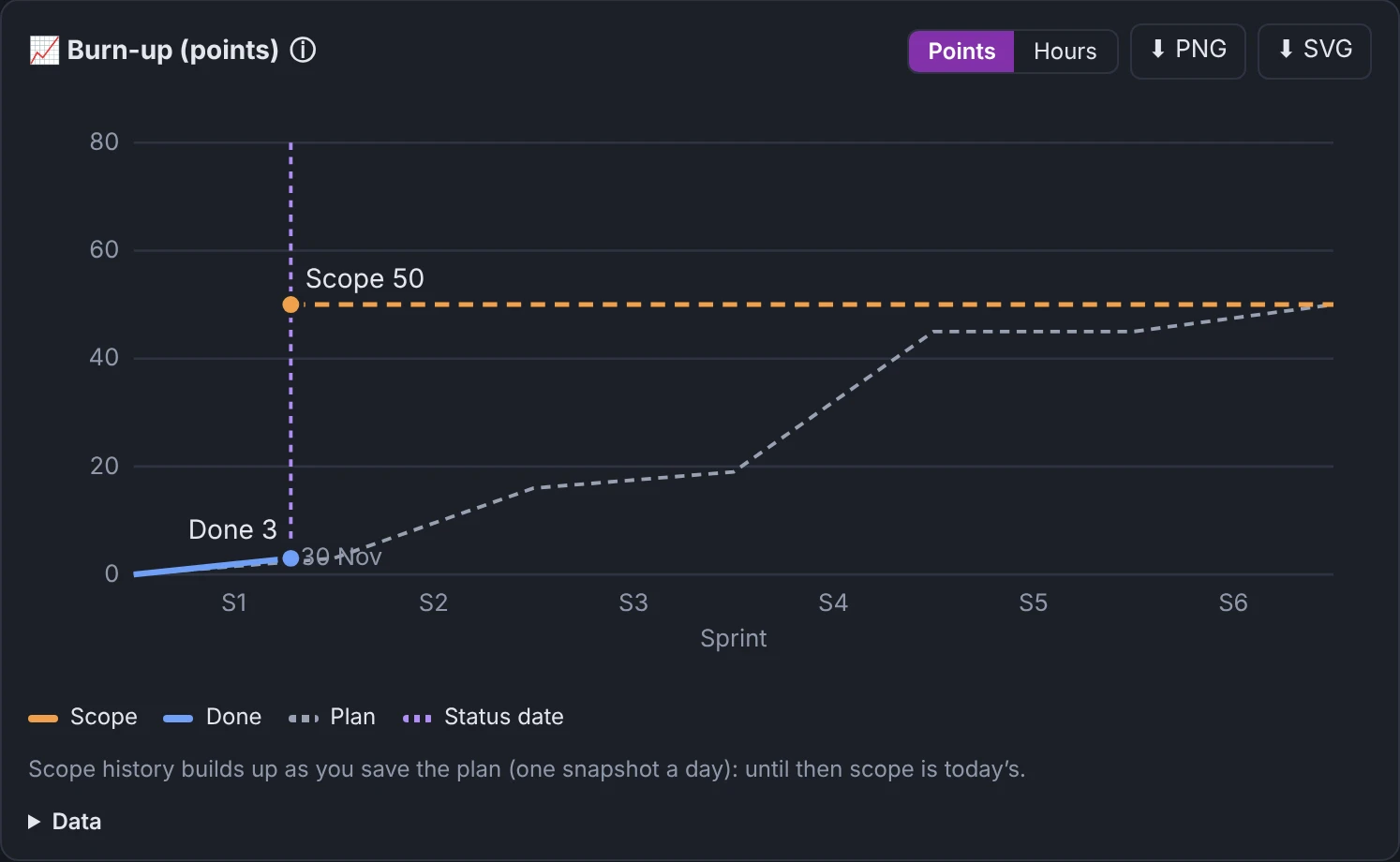
Pick Scrum, Kanban, Scrumban or Scaled (release train). Plan sprints against the team’s capacity, group work into releases and watch the burn-up chart climb.
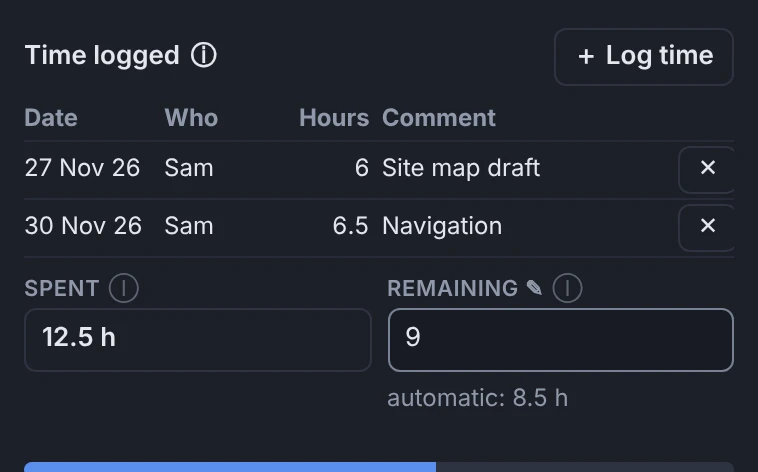
Record actual start and finish dates, log time and add comments as you go. Comments and work logs travel with the Jira export, so nobody has to type them twice.
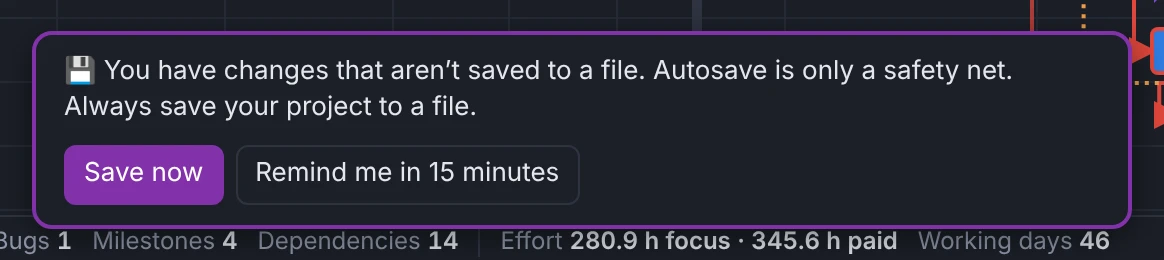
Elevenses keeps an autosave copy in your browser, but it’ll still nudge you when your changes aren’t saved to a file. Choose how often, from every 5 minutes to every hour, or snooze it while you finish your tea.
Come here when your tools won’t play. No licence or access yet, a locked-down network, a client site, or a tool that’s too heavy for an early estimate? Plan and cost it in Elevenses anyway.
Stay, because it works. Plan, cost, run sprints, track progress, report and quote, from the first estimate to the last milestone, all in one file.
Don’t fancy staying? No hard feelings. Export to your existing (probably expensive) tool and carry on there, with nothing to retype.
A CSV file for Jira’s own CSV import, on Cloud or Data Center. Issues keep their hierarchy, dates, story points and assignees. Dependencies become issue links, and comments and work logs can come along too.
An XML file that opens in Microsoft Project as a plan, with its tasks, links, resources and assignments.
A workbook whose costs are formulas, not pasted numbers. Change a rate and the totals still add up.
Also: plain CSV, a cost report, PNG and SVG images, PDF and a client quote. Every export is a file you import when you’re ready, not a live link, so there’s nothing to keep in sync.
Your plans are your business. Elevenses never sees them, the downloaded copy never needs the internet, and every line of the app is there to read.
Yes, completely. You’re free to use, download and modify it. Please just don’t sell it, in whole or in part, without the author’s consent and credit. The full terms are at the foot of this page.
No. “Start now” opens it in your browser. Or download it: it’s one HTML file, with no installer and no admin rights, and it needs no internet once it’s saved. Double-click it to open it.
Yes. Import a CSV from Jira, a spreadsheet or another planner, and a wizard helps you set up the rest.
Yes. The Schedule view is a Gantt chart. Drag bars to move or resize work, link them with dependencies, and see the critical path.
Yes. Download the one HTML file and open it in a browser. It needs no installer, no admin rights and no internet connection.
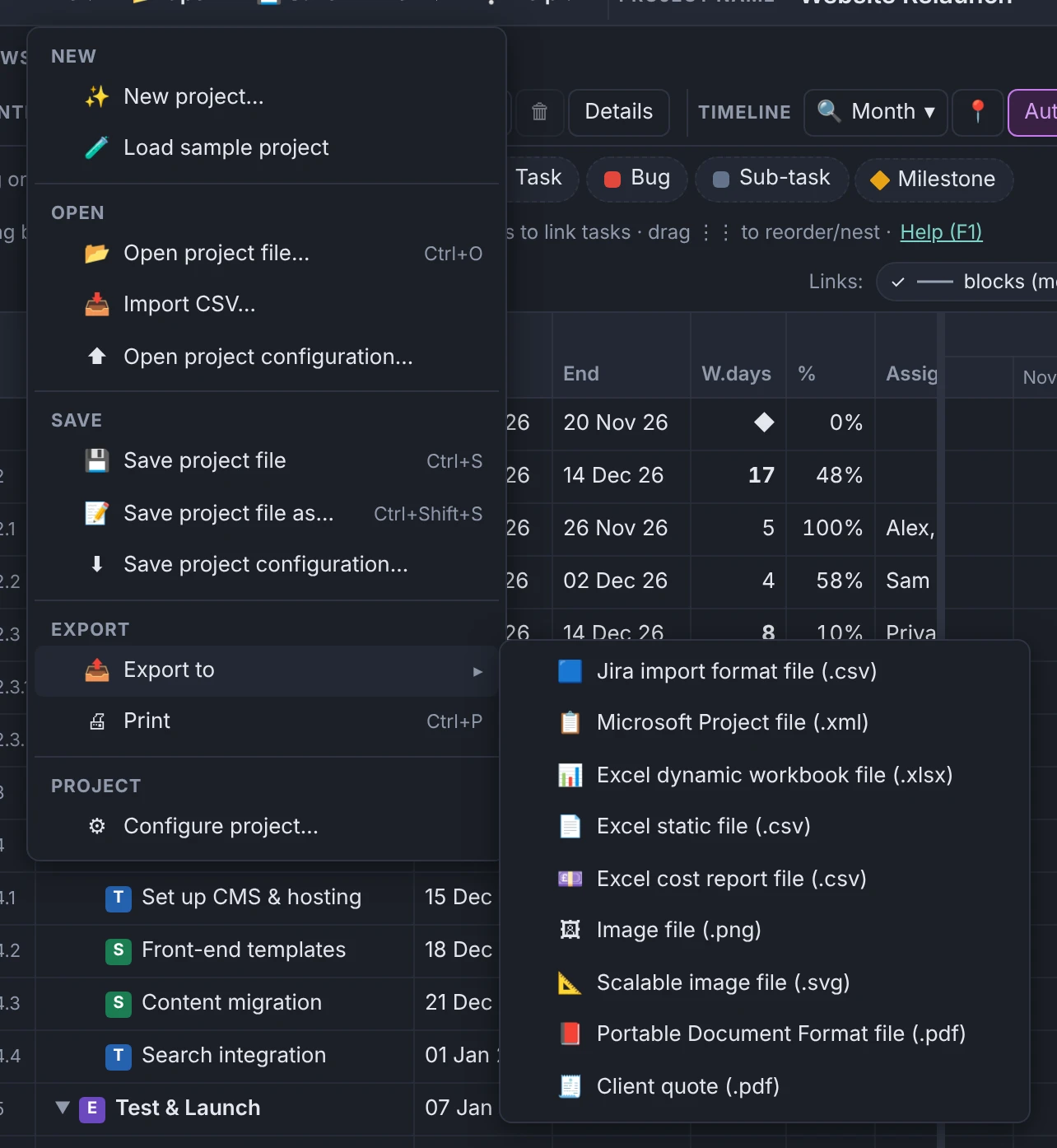
Choose File › Export to › Jira. Elevenses makes a CSV for Jira’s own CSV import, on Cloud or Data Center, keeping the hierarchy, dates, story points, assignees and links.
Yes. Export to Microsoft Project and you get an XML file that opens as a plan, with its tasks, links, resources and assignments.
On your computer. You save each project as a .elevenses.json file wherever you like, and Elevenses keeps an autosave copy in your browser’s storage. Clearing your browser data clears that copy. Nothing is sent anywhere.
Autosave is only a safety net. Always save your project to a file.
Any modern browser. Chrome or Edge are recommended, because Save writes straight back to your project file. Other browsers, such as Firefox and Safari, download a copy instead. Phones and tablets work, but a computer is best.
“Start now” always opens the latest version. For the offline copy, download the new version and replace the old file. Your .elevenses.json project files still open.
Yes. The whole app is one HTML file, written to be read. Its code isn’t minified or scrambled: it has descriptive names and plain-English comments on how each calculation works. To read it, open the app (“Start now”, or your downloaded file), then right-click and choose View page source. Or press Ctrl+U on Windows or Linux, or ⌥⌘U on a Mac. In Safari, turn on “Show features for web developers” first, under Safari › Settings › Advanced. You can also open the file in any text editor.
Inside the app, ∑ Formulae on each pane shows the formula behind every figure, with your plan’s own numbers.
Elevenses is the British mid-morning tea break. Plans that forget about breaks, meetings and holidays run late. This one doesn’t forget, and it’s named after the best one.
Drop a line to author@elevenses.app. For a bug, use Report a bug: it starts an email with a few questions to answer. Please don’t include confidential plan details.